It's here:
http://computersstoneage.blogspot.com/2008/06/asus-nvidia-8800-gt-gpu-temperature.html
Tuesday, June 3, 2008


Monday, June 2, 2008
How to stop a noisy hard disk with Linux
The hard disk I use to host my Windows is extremely noisy. Furthermore, since I use Ubuntu 99% of the time and nearly never access this hard drive during this time, keeping the disk spinning is absolutely useless.
The simplest way to stop the hard drive is to use sg3-utils.
To install it just use this command:
If you want your hard drive to stop every time you log onto your account, you can add the command to the list of software to start when you log in. However, to be able to do that, you will have to allow you to sudo sg_start without having to enter your password.
To do that if your user name is username then, edit /etc/sudoers and add the line:
The simplest way to stop the hard drive is to use sg3-utils.
To install it just use this command:
sudo apt-get install sg3-utilsNow, if you want to stop the hard drive /dev/sda, use this command:
sudo sg_start --stop /dev/sdaThe disk will restart as soon as you will try to access it.
If you want your hard drive to stop every time you log onto your account, you can add the command to the list of software to start when you log in. However, to be able to do that, you will have to allow you to sudo sg_start without having to enter your password.
To do that if your user name is username then, edit /etc/sudoers and add the line:
username ALL=NOPASSWD:/usr/bin/sg_startTo edit /etc/sudoers you have to make it writable by root, then when you have edited it, do not forget to set it read only for root, and nothing for group and users. If you don't do that, or make an error in suoers file, sudo will no more work. So be carefull, and keep a root shell open while you test if sudo still work.
Sunday, June 1, 2008
nvidia 8800 GT GPU temperature with linux
This modification of nvclock works and is accurate with my video card, but I accept no responsibility for damages this modified software may create. This software and information is provided 'As Is'.
I'm the unlucky owner of an ASUS EN8800GT.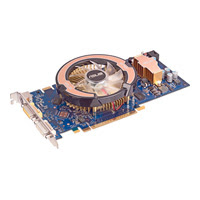
This card basically do the job. However, ASUS has disabled the standard temperature and fan control system to allow only their own ugly software which works only with windows to monitor the card.
Under linux, nvidia-setting software return nothing for temperature. This is disappointing.
Luckily, I found a solution to be able to read, at least the GPU temperature on my Ubuntu Box.
I found that nvclock v0.8 beta3 was able to report a GPU temperature. However, this value is not good. So I modified nvclock to report correctly the temperature. Find below the patch for the file src/backend/nv50.c:
Nicolas (see comment below and thank you for your update) reported that since nvclock 0.8 beta4, a new patch is necessary to provide the good temperature (not -380° or so). Here is the code:
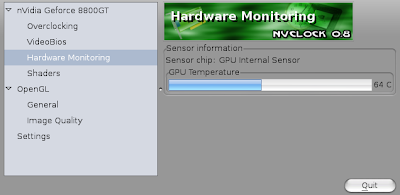
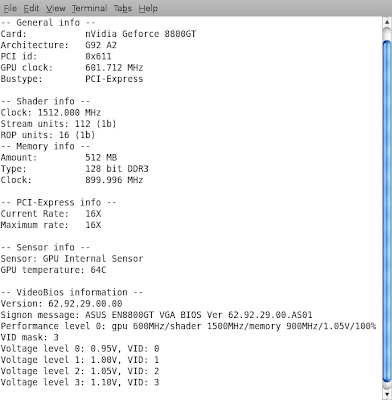
Now, it reports the temperature correctly, and other video cards still work correctly.
The result looks like that:
I hope this is helpful to you.
I'm the unlucky owner of an ASUS EN8800GT.

This card basically do the job. However, ASUS has disabled the standard temperature and fan control system to allow only their own ugly software which works only with windows to monitor the card.
Under linux, nvidia-setting software return nothing for temperature. This is disappointing.
Luckily, I found a solution to be able to read, at least the GPU temperature on my Ubuntu Box.
I found that nvclock v0.8 beta3 was able to report a GPU temperature. However, this value is not good. So I modified nvclock to report correctly the temperature. Find below the patch for the file src/backend/nv50.c:
139a140,146
>
> //Temperature support for G92
> if(( (nv_card->bios->device_id&0xff00) == 0x600)||( (nv_card->bios->device_id&0xff00) == 0x610))
> {
> temp = nv_card->PMC[0x20008/4]&0x3fff;
> return (-13115 + temp) / 18.7 + 1;
> }
Nicolas (see comment below and thank you for your update) reported that since nvclock 0.8 beta4, a new patch is necessary to provide the good temperature (not -380° or so). Here is the code:
--- src/backend/nv50_old.c 2009-01-04 11:46:39.000000000 +0100
+++ src/backend/nv50.c 2009-05-26 14:21:12.000000000 +0200
@@ -229,7 +229,7 @@
printf("divider=%f, offset=%f\n", divider, offset);
}
- temp = nv_card->PMC[0x20008/4] & 0x1fff;
+ temp = nv_card->PMC[0x20008/4] & 0x3fff;
return (int)(temp + offset)/divider;
}
Now, it reports the temperature correctly, and other video cards still work correctly.
The result looks like that:


I hope this is helpful to you.
Saturday, May 31, 2008
How to convert your video to work on your IPod in one click with linux (Gnome)
 This tutorial has been done with Ubuntu 8.04 .
The problem with Ubuntu 8.04 is that ffmpeg doesn't support aac encoding by default. So we will have to compile it with support for aac.
First of all, verify that ffmpeg is not installed on your computer. If it'S installed, please, uninstall it using synaptic.
Now, open a terminal, and execute the following commands:
sudo apt-get build-dep ffmpeg
sudo apt-get install liblame-dev libfaad-dev libfaac-dev libxvidcore4-dev libx264-dev liba52-0.7.4 liba52-0.7.4-dev
sudo apt-get source ffmpeg
Now, go in ffmpeg source folder folder:
cd ffmpeg-0.cvs20070307/
Now, it's time to compile ffmpeg with the following commands:
sudo ./configure --enable-gpl --enable-libogg --enable-liba52 --enable-dc1394 --enable-libgsm --disable-debug --enable-libmp3lame --enable-libfaad --enable-libfaac --enable-xvid --enable-pthreads --enable-x264
sudo make
sudo checkinstall -D make install
If everything went well, now ffmpeg is installed on your computer with support for aac.
To allow you to convert films to mp4 supported by an IPod in a single click, you need to do the following.
First, verify that zenity is installed by running the following command:
sudo apt-get install zenity
Then, run the following command to create and edit the script used to convert vidoes in 4:3:
gedit "~/.gnome2/nautilus-scripts/Ipod Video 4:3"Then copy the following script in the editor and save the content:
#!/bin/bashSince I have a quad core GPU, I use the option -threads 3 to use 3 cores. Change the value to 1 or 2 if you have one or two cores.
IFS='
';
# List all files
count=0;
for f in $NAUTILUS_SCRIPT_SELECTED_FILE_PATHS;
do
count=$(($count+1));
done
pos=0;
for file in $NAUTILUS_SCRIPT_SELECTED_FILE_PATHS;
do
pos=$(($pos+1));
name=${file##*/}
ffmpeg -threads 3 -y -i "$file" -f mp4 -vcodec mpeg4 -maxrate 700000 -b 700000 -qmin 3 -qmax 5 -bufsize 4096 -g 300 -acodec aac -ab 192 -s 320x240 -aspect 4:3 "$file.mp4" 2>&1 | perl -ne '$/="\r";$| = 1;if (/Duration: (\d+):(\d+):(\d+)/) { $max=($1*3600+$2*60+$3) }; if (/time=(\d+)/) { printf "%d\n",($1/$max*100);} print STDERR $_;'| zenity --progress --auto-close --title="$name" --text="File $pos/$count" --percentage=0
done
Now, close the editor and run the following command to make the file executable:
chmod 700 "~/.gnome2/nautilus-scripts/Ipod Video 4:3"
To create the script which convert fils in 16:9 format, run the following commands:
gedit "~/.gnome2/nautilus-scripts/Ipod Video 16:9"Then copy the following script in the editor and save the content:
#!/bin/bashSince I have a quad core GPU, I use the option -threads 3 to use 3 cores. Change the value to 1 or 2 if you have one or two cores.
IFS='
';
# List all files
count=0;
for f in $NAUTILUS_SCRIPT_SELECTED_FILE_PATHS;
do
count=$(($count+1));
done
pos=0;
for file in $NAUTILUS_SCRIPT_SELECTED_FILE_PATHS;
do
pos=$(($pos+1));
name=${file##*/}
ffmpeg -threads 3 -y -i "$file" -f mp4 -vcodec mpeg4 -maxrate 700000 -b 700000 -qmin 3 -qmax 5 -bufsize 4096 -g 300 -acodec aac -ab 192 -s 320x180 -aspect 16:9 "$file.mp4" 2>&1 | perl -ne '$/="\r";$| = 1;if (/Duration: (\d+):(\d+):(\d+)/) { $max=($1*3600+$2*60+$3) }; if (/time=(\d+)/) { printf "%d\n",($1/$max*100);} print STDERR $_;'| zenity --progress --auto-close --title="$name" --text="File $pos/$count" --percentage=0
done
Now, close the editor and run the following command to make the file executable:
chmod 700 "~/.gnome2/nautilus-scripts/Ipod Video 16:9"
To convert a video, just right click on your video file, then left click, then go to scripts option, and choose one of the two scripts.

The you will see the conversion progress:

You can select several videos at the same time to make a batch conversion.
Now, to put your new video on your Ipod, just use gtkpod.
Friday, May 30, 2008
My new computer
A few times ago, I bought a new computer. I didn't invest more than 150$ in a computer for years (7 at least), except when I bought two new 22" Flat screens in November 2007. So it is a major change to me.
My config is quite a standard one:
My old computer (I bought it one year ago for 150$) is now used as Mythtv backend and frontend for my TV and videoprojector.
The config is:
My config is quite a standard one:
- Asus P5N-D motherboard
- Intel Core 2 Quad Q6600 (easy to over clock in case it becomes necessary)
- 4GB of DDR2 800 (much more than necessary since I use less than 10% in everyday use)
- Asus Nvidia 8800 GT PCIE video card (don't buy this one choose a 8800GT from any other supplier. I will explain why later)
- Antec Sonata III (silent, good power supply and low price)
- 750 GB Seagate hard drive
- A hold 70GB hard drive
- Simple DVD player/writer from LG (no need for Blue Ray at this time)
- Microsoft Confort Curve 2000 keyboard (it's the keyboard I prefer for typing)
- Logitech G5 v2 mouse
- Ubuntu 8.04 as main operating system (on the 750 GB hard drive)
- Windows Vista Ultimate (just in case and for gaming) (on the 70GB hard drive)
My old computer (I bought it one year ago for 150$) is now used as Mythtv backend and frontend for my TV and videoprojector.
The config is:
- AMD Athlon 2500+ with quite big and silent heatsink
- 1GB of ram
- 500 GB hard drive (I bought a new one because I need a lot of space for recorded programs, and it's more silent)
- I added a hauppauge PVR 150 with Windows media center remote and receiver (I'm desappointed since I find the image very blurred)
- Nvidia 6600 GT AGP (disappointing since most of passive fans on the market do not support this card)
- everything is in a unkown box..
- Mythbuntu is the operating system. I made some configurations to allow the computer to stop and restart automatically to record programs
Subscribe to:
Comments (Atom)